cs
26/05/2026
Starting with the first topic, the ‘terminal’, or more specifically, the ‘shell’. We know that computers have different GUIs (interfaces) we use to interact with the computer. These days we hear about interfaces such as agentic interfaces, voice interfaces, neural interfaces, etc. but these are niche and specialised to what the author had made it for. For example, the GUI, you can only do things that are programmed to be done within the GUI.
The shell is just a program on the computer that takes in inputs, and gives you outputs. So the terminal is just the window, i.e. the interface where you type, where as the shell is the actual program that understands and executes your commands under the hood.
The terminal essentially provides you with the required environment for the input and output and the shell is what actually interprets the commands and passes then to the operating system’s kernel.
 The shell that is most commonly used is the Bourne Again SHell or ‘bash’.
- linux : bash
- macOS: zsh (used to be bash before)
The shell that is most commonly used is the Bourne Again SHell or ‘bash’.
- linux : bash
- macOS: zsh (used to be bash before)
“Why should you care about the shell?”
It is usually much faster than clicking around in a GUI. You can automate things within the shell. It is just like a programming language.
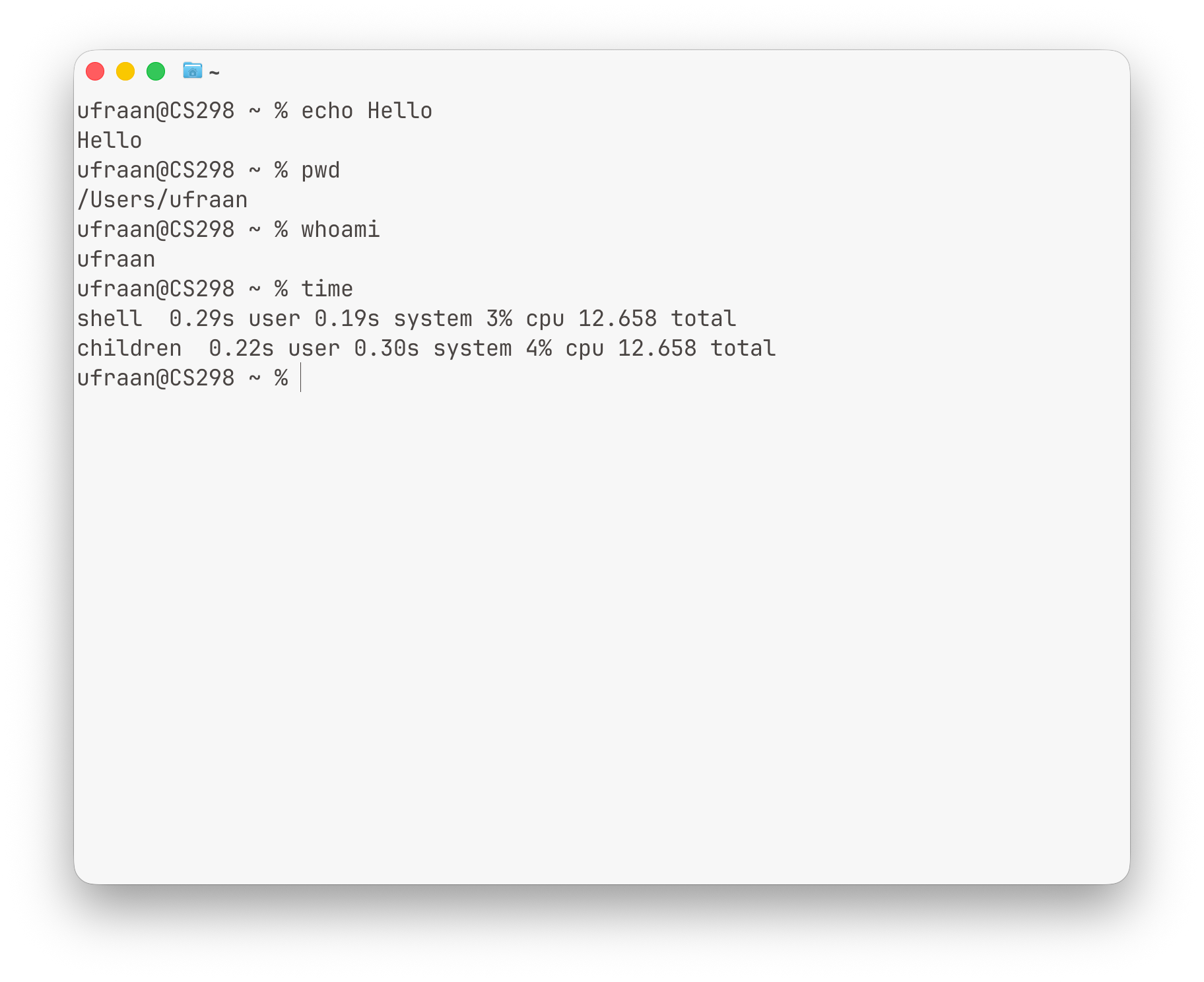
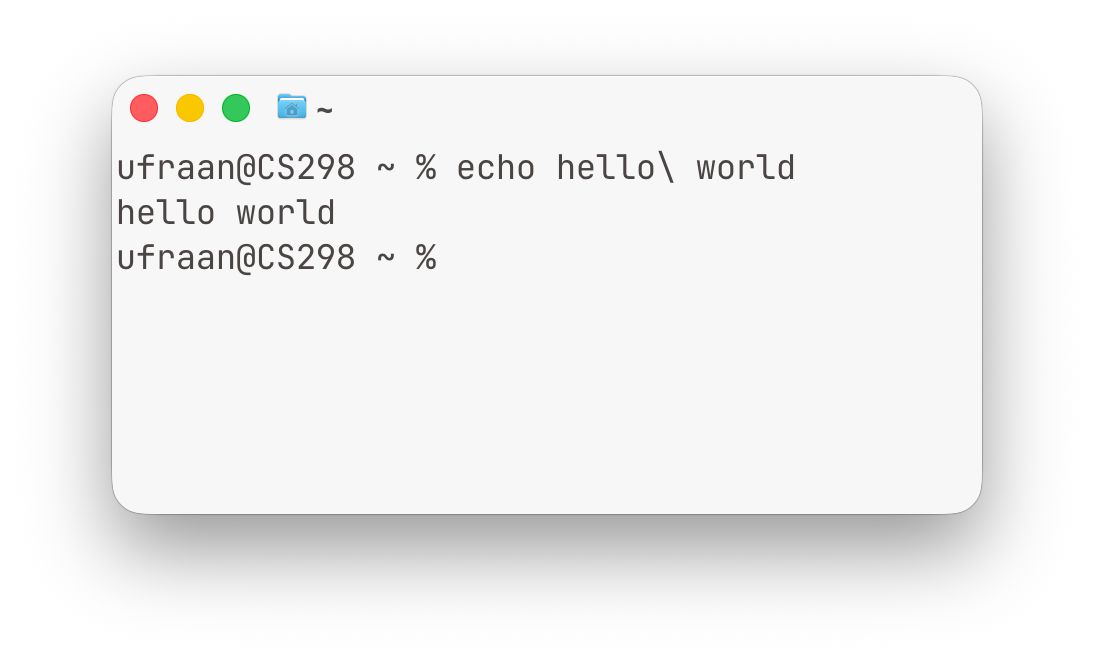
As we can see in the example above, - ufraan is the username - CS298 is the machine name - the tilde (~) is the location is on the file system. ~ is short for the home directory.
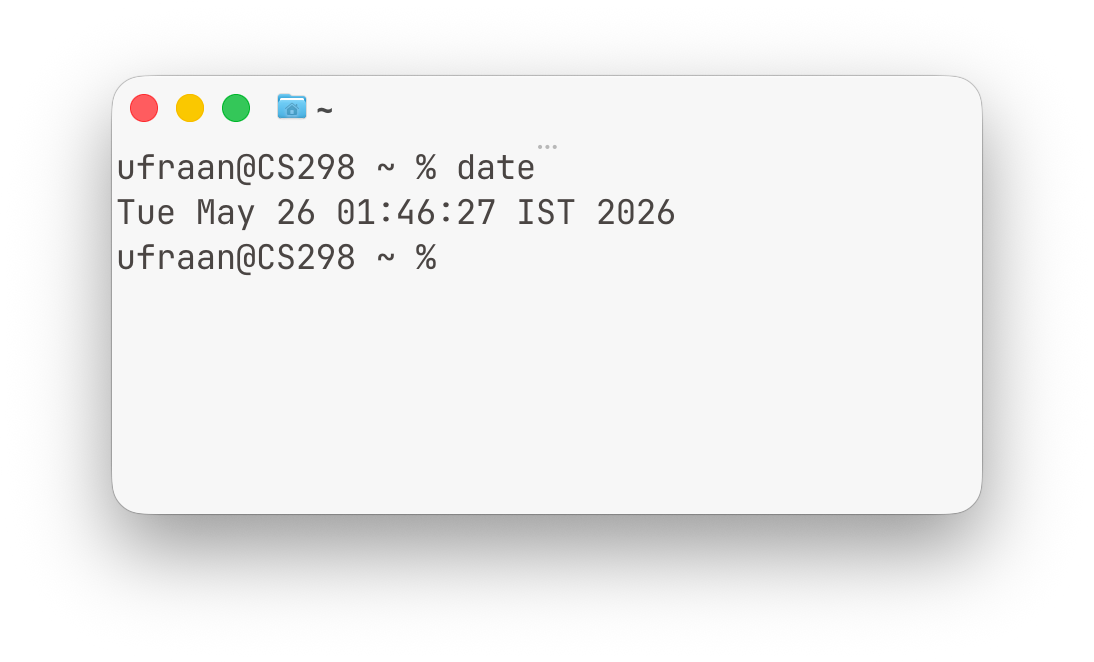
We can just type commands you want to be executed. The simplest thing you can type is the name of a program. For example the date program. It prints the date to the terminal.
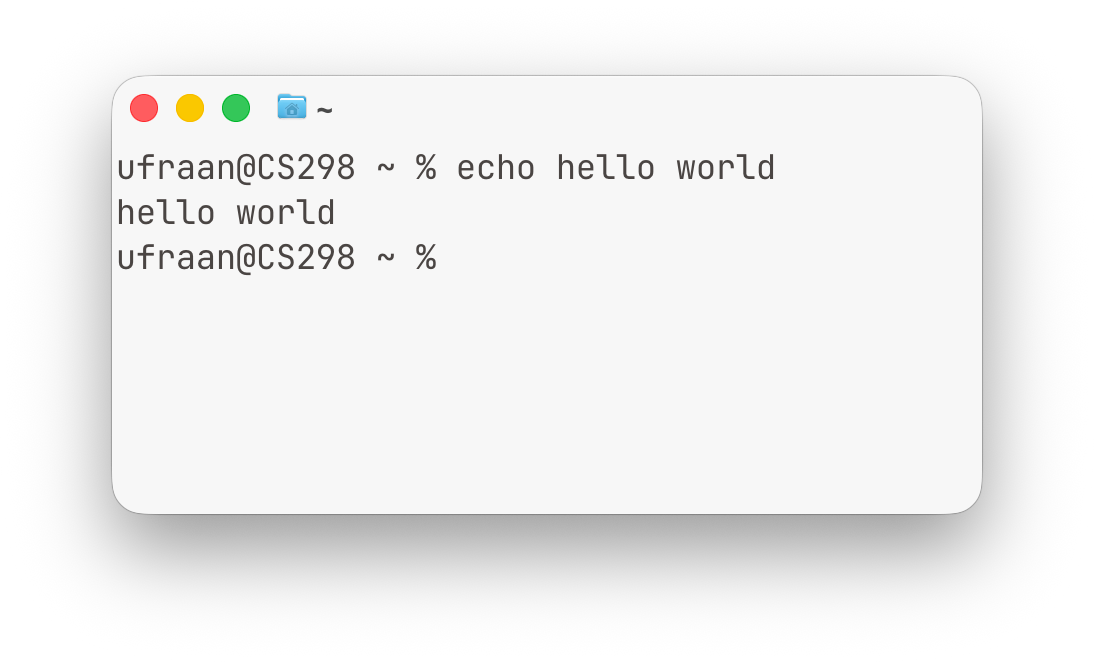
We can also execute commands with arguments. Arguments are nothing but some values that follow the program name. For example the echo program takes in the argument we give it and just prints the argument back in the terminal.
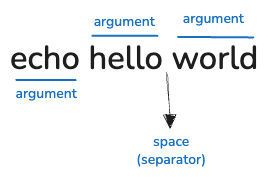
hello and world are arguments to the echo program.
 One thing we can look into here is argument parsing. It essentially is that you take the string/text/data the user gave and split it at whitespace boundaries, and each whitespace separated word is one argument.
The first argument is the program to execute.
One thing we can look into here is argument parsing. It essentially is that you take the string/text/data the user gave and split it at whitespace boundaries, and each whitespace separated word is one argument.
The first argument is the program to execute.
We also have special characters in the shell, one of them being the backslash \ character. The backslash is mainly used as an escape character, meaning it changes the special meaning of the character that comes after it.
For example, spaces normally separate arguments, but writing "hello\ world" tells the shell to treat the space as a normal character instead. So hello\ world becomes a single argument rather than two separate ones.
 Another program we will find most useful in this is the
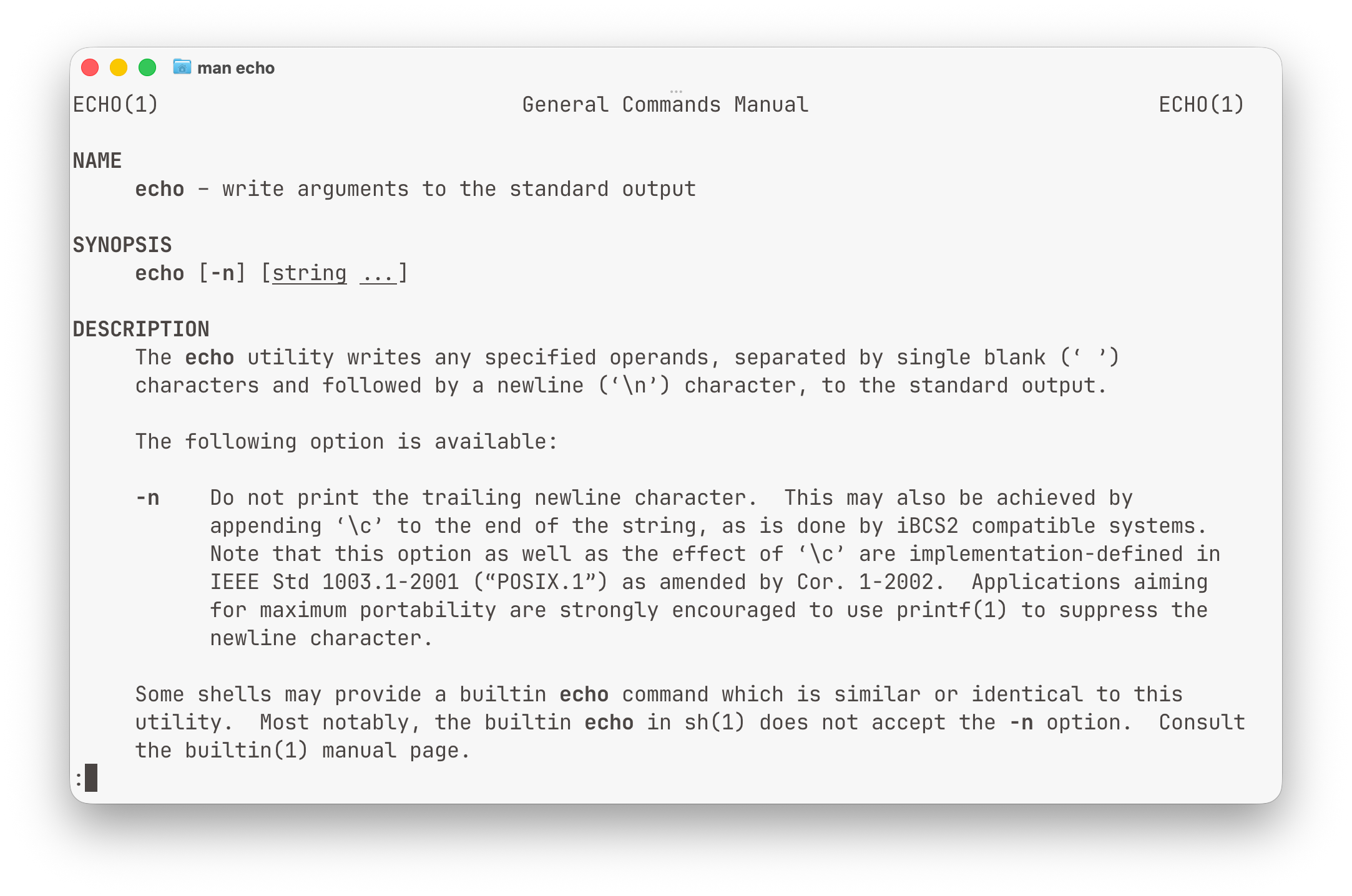
 man program (short for manual). This allows us to pass in the name of another program as an argument, and for the result/output, it explains us how to use that program.
Example: man echo would result in a manual page opening explaining how to use the echo program as shown below:
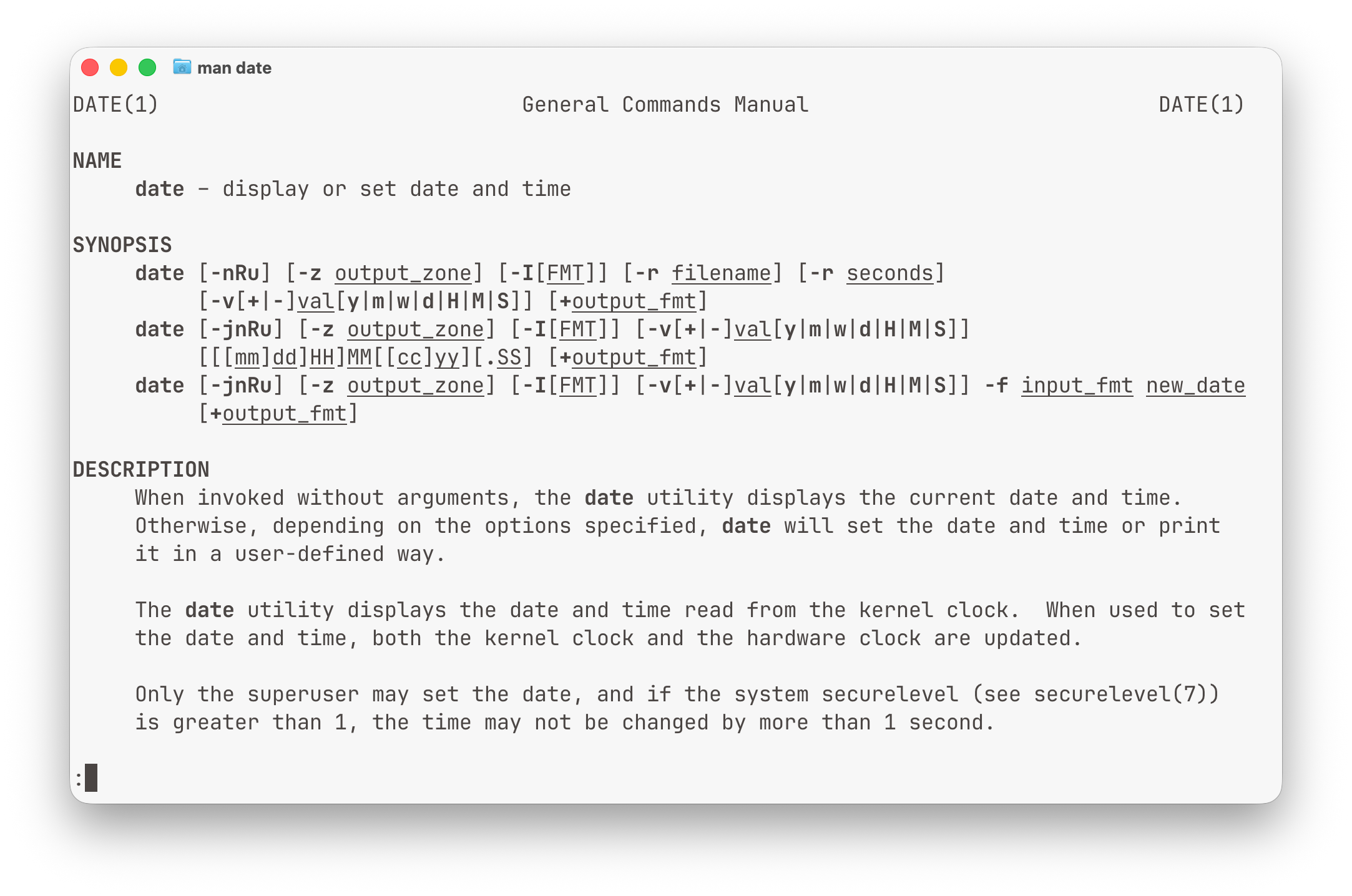
 Similarly, below is an example of the output page for the command
 man date:
cd command
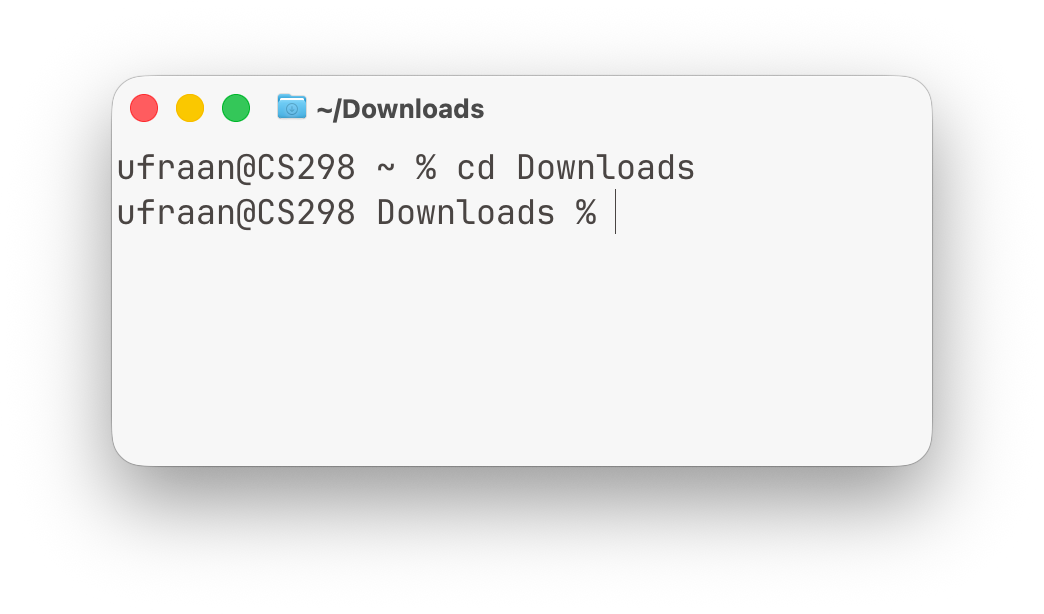
The cd command stands for change directory. It is used to move between folders/directories in the filesystem from within the shell.
For example, running cd Downloads changes the current working directory to the Downloads folder. Commands executed after that will run relative to this new location.
 When navigating directories, typing full absolute paths every time would be tedious. So shells provide shorthand path symbols like
 ., .., etc. to make movement relative to the current directory easier.
.means “the current directory”..means “the parent directory” (one level up)
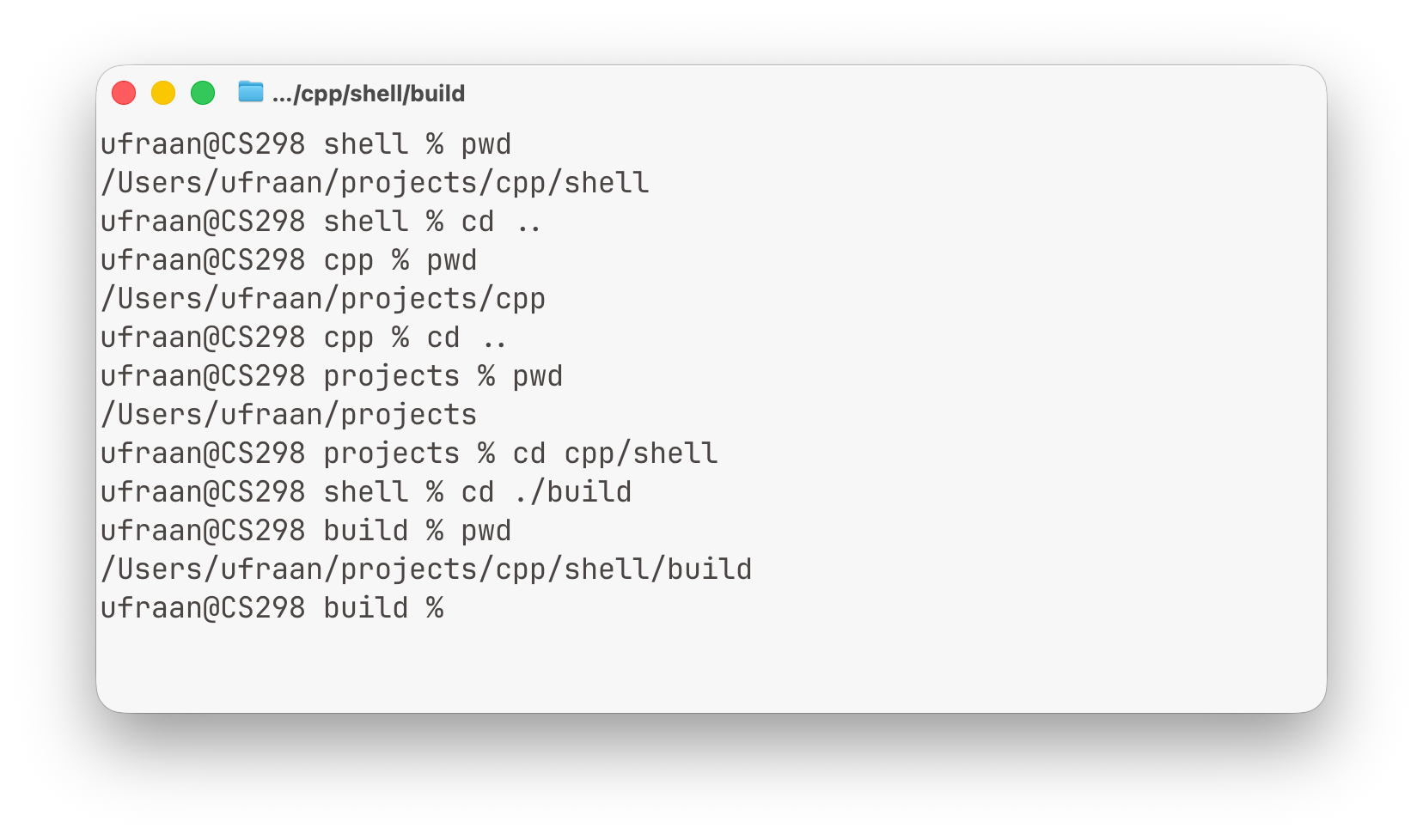
For example, if you are inside ~/projects/cpp/shell:
cd ..moves you to~/projects/cppcd ../..moves you two levels up to~/projectscd ./buildmeans “go to thebuildfolder inside the current directory”
tab
The Tab key is commonly used for auto-completion in the shell. Instead of typing full file names, directory names, or commands manually, you can press Tab to let the shell complete them for you.
For example, if a directory named Downloads exists, typing cd Down and pressing Tab may automatically complete it to cd Downloads. If multiple matches exist, pressing Tab twice often shows all possible completions.